Saturday, November 21, 2009

#37 Links from TweetDeck not opening in Opera?

Not my usual forte, but I had this problem, and I just had to share the solution with you!

Windows XP has this section for setting the default browser on your machine, and that might be causing you trouble. For the sollution, got to your Control Panel, and then proceed to Add/Remove Programs.

addRemove                                 setProgramDefaults

After that click on Set Program Access and Defaults.

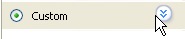
Custom

Click on the double down arrow next to the Custom option to open up the settings that we need.

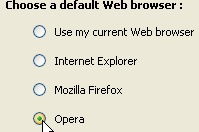
Default

Under the menu for Choose default Web Browser select Opera(or any other browser you want). Don’t worry about the checkbox on the right.

You are done! This has worked for me. I have seen reports that you  might need to restart your PC for this to take effect, so try that if it doesn’t help!

Monday, October 12, 2009

#36 Give Your Photos Power, in a few clicks

Have you ever wondered how other photographers have powerful colors in their photos? If you thought it’s all in the camera, you are way off track! Read on to find out the truth behind these photos…

Decide which photo you want to empower and open it in Photoshop (i think this works in all CS versions).

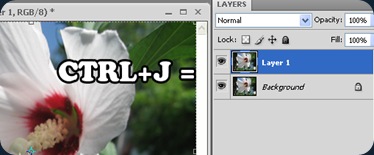
1) Duplicate the background layer (the only layer):
overlayFlower1

2) Apply a Gaussian blur to the new layer, to such an extent that you can’t make out the details, but you can make out the shapes:overlayFlowerBlur
Click on the picture for a better view.

3) And finally change the upper layers blending to Overlay:

overlayOverlay And you’re done! This particular photo looks like this:
overlayFlower

Now that you know this simple solution, you can add other tricks to the same photo, like using this as a border, or applying it only to the background.

You can diminish this effect by reducing the opacity of the upper layer.

And remember, this was taken with a 100$ camera, so I am pretty sure you can do it with whatever you got ;)


Flaky Collector by ~NebojsaC on deviantART

Friday, July 17, 2009

#35 Easy Do-It-Yourself Frames for Photoshop, Brush Shapes

This is a quickie. To get you started:

1) Open the image you want done

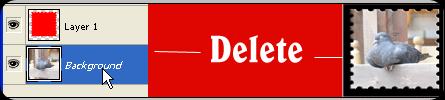
2) Make a copy of the Background Layer, and delete the original background layerLeaf Frame1

3) Make an New Layer beneath the picture(check image for consistency)


4) Hold down ALT and click on the line between the layers(as shown on the image below)

Clipping1

Your layer should move slightly to the right like so:

Clipping2 

You should now have a blank screen to work with. Now, take your Brush, set it’s Size and Hardness, and start painting on the empty layer!ClippingFinal

My tip Is to use different shapes for your brushes for some interesting effects. For starters, try the built in leaf brush and you might get something like this(image on right).

For an added frame effect you can always add Stroke borders on your layer, and a background layer with a color or gradient on the bottom.

This has many possibilities, and try combining with other tricks you know for some exciting results.

You could also look for more Brush packs for Photoshop. A good place to start is http://www.brusheezy.com/.

Monday, July 13, 2009

#34 Easy Do-It-Yourself Frames for Photoshop, Photo Borders

The simplest frames are often the best ones. Especially if you’re in a hurry, or don’t want to lose focus with the photograph you’re framing.

For this particular tutorial, a good choice of photograph would be one where the photo has one or two dominating colors. A good example is a wedding photo, where the dominating colors are the colors of the bride’s dress and bouquet, but anything will do. My choice:

beeThe obvious colors here are that purplish-blue  flower and the orange-yellow bee. The photo(by my standards) isn’t bad on it’s own, but suppose you want to add a bit of style to it.

Okay, now go to Image –> Canvas Size (Alt + Ctrl + C), and set it like so(click for a close up):

CanvasSize

So you just change the units to percent, set it to Relative and type in 6 (or any smaller number) for the size. For the Canvas extension color you click on the color box next to, and click on your image. Your mouse pointer turns into an eyedropper tool, and you choose the color for your border. This way you use the color from you picture. Click OK for the color picker, and OK again for the Canvas Size. I got:

bee2

The first part is done. Now, repeat what you did with the Canvas Size, but change the size to 30 this time, and pick another dominating color from the photo.

If you are not happy with the color picker, you can choose it manually.

So basically you make two different sized bands around the photo.

bee3Looking at it now, I probably should have used a darker purple. But maybe it’s just my BBB(black blog background).

Variations on this subject can include, but are not limited to:
-using more(or less) than 2 borders/colors
-different sizes, like making the first border thicker
-adding the Vignette effect beforehand for interesting results
-and so on…

Once you’ve read through this, you will realize that the longest part of this tutorial is looking for, and opening the photo, while the rest just zips by. Have fun with it!

Saturday, July 11, 2009

#33 Easy Black and White photos with some colored areas

Ok, keeping it short and simple. Open the image you want to work with in Photoshop. Press CTRL+SHIFT+U to make it black and white(or Image->Adjustments->Desaturate).

BWButterfly

Now, all that’s left to do is select the History Brush tool(shortcut Y) and be sure to not select the Art History Brush by mistake.

Now just go over the areas you want to get their color back and voila:

BWButterfly2

If you accidentaly color too much of it, you can use the color replacement tool, and set it to Black, to turn areas back to black and white.

An importatn thing to note is that the Desaturate command should be the first and only modification prior to the History Brush tool. If the image was rotated, then the History Brush won’t work. So, if you come across this problem, then firstly color it, and then rotate it, or rotate it, save it, and open it again.

That’s it. Learn to control the brush size and feathering for the best results, and even opacity finds it’s use here. Have fun and enjoy.

Tuesday, April 7, 2009

#32 Up close and personal, shoe-shine perspective

This can be treated as a continuation to the macro photography post. Also, on a side note, I’ve read somewhere that posts are better when left shorter. Which makes sense in this micro blogging boom that we see today.

IMG_2154

The above photo shows how NOT to do it. First of all, turn off the flash and get closer!

A good way to make your macro photography stand out is to get real close, from a shoe-shine perspective.

Get the camera low and close to the subject, and shoot upwards:

IMG_2156I will just try and keep the posts as short as possible, for experimentation purposes.

Sunday, February 22, 2009

#31 Fix Up Your Makeup In PhotoShop

If what the current internet trends are any indication, then you can’t have a photo of you on a social site without at least a little retouching.

Well, for starters, you need a photo to fix up. This is a guy writing this, so I won’t be working with what you would expect for “makeup”:

MakeUp1

I was amazed how this turned out, I wouldn’t of changed it, but it will be great for today’s trick.

The white isn’t completely white, and the black isn’t completely black. We have some smudges here and there, and some flash reflection to get rid of.

The first thing we should do is fixing the glow from the camera’s flash. We are going to use Color Curves to help us single out the flashed parts.

Make a copy of the one layer you have, and put it above the main layer. Now, select that new layer and open the color curves tab.

MakeUp2Once you make the curve to look like mine(see above), spotting the patches with too much light is easy. One of mine is above the eyebrow and there are 2 more on the lips, and one on the nose.

Use any selection tool to select the patches that need some flash reduction, and feather the edges of your selections.

Now hide this layer by clicking on the eye icon next to it on the layer window. Select the visible layer and open up the Curves again.

MakeUp3This way we can reduce the whiteness so we can continue to work with the image, but salvaging completely the color that was under there is a different thing. This is why you have to mind how and when you use your camera flash.

Next step: Fixing the white and black colors.

Since they are simple black and white colors, we can use the Dodge and Burn tools, but if it were any other color, we would need to use the brush. This is why I am going to show you how to use the brush tool, so you can fix any faded color.

Select the Brush tool and the color you need. I will start with a white, and continue with a black brush.

MakeUp4

Set the Brush opacity to about 30%, and start brushing up the photo. When working around your hair, lower the opacity, and when working with nooks and crannies reduce the brush size.

The same goes for any color.

Take your time, and fix it up as you see fit.

MakeUp5

MakeUp1


The before and after shots. That’s one way to fix up your make up. I could of done the lips too, with any color available.

So the next your makeup is faded on your photos, just spruce it up in PhotoShop.