Showing posts with label Photography. Show all posts

Tuesday, April 7, 2009

#32 Up close and personal, shoe-shine perspective

This can be treated as a continuation to the macro photography post. Also, on a side note, I’ve read somewhere that posts are better when left shorter. Which makes sense in this micro blogging boom that we see today.

IMG_2154

The above photo shows how NOT to do it. First of all, turn off the flash and get closer!

A good way to make your macro photography stand out is to get real close, from a shoe-shine perspective.

Get the camera low and close to the subject, and shoot upwards:

IMG_2156I will just try and keep the posts as short as possible, for experimentation purposes.

Sunday, February 22, 2009

#31 Fix Up Your Makeup In PhotoShop

If what the current internet trends are any indication, then you can’t have a photo of you on a social site without at least a little retouching.

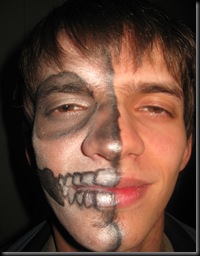
Well, for starters, you need a photo to fix up. This is a guy writing this, so I won’t be working with what you would expect for “makeup”:

MakeUp1

I was amazed how this turned out, I wouldn’t of changed it, but it will be great for today’s trick.

The white isn’t completely white, and the black isn’t completely black. We have some smudges here and there, and some flash reflection to get rid of.

The first thing we should do is fixing the glow from the camera’s flash. We are going to use Color Curves to help us single out the flashed parts.

Make a copy of the one layer you have, and put it above the main layer. Now, select that new layer and open the color curves tab.

MakeUp2Once you make the curve to look like mine(see above), spotting the patches with too much light is easy. One of mine is above the eyebrow and there are 2 more on the lips, and one on the nose.

Use any selection tool to select the patches that need some flash reduction, and feather the edges of your selections.

Now hide this layer by clicking on the eye icon next to it on the layer window. Select the visible layer and open up the Curves again.
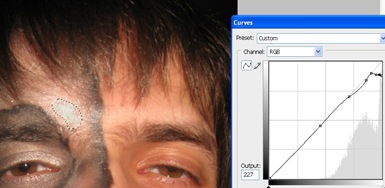
MakeUp3This way we can reduce the whiteness so we can continue to work with the image, but salvaging completely the color that was under there is a different thing. This is why you have to mind how and when you use your camera flash.

Next step: Fixing the white and black colors.

Since they are simple black and white colors, we can use the Dodge and Burn tools, but if it were any other color, we would need to use the brush. This is why I am going to show you how to use the brush tool, so you can fix any faded color.

Select the Brush tool and the color you need. I will start with a white, and continue with a black brush.

MakeUp4

Set the Brush opacity to about 30%, and start brushing up the photo. When working around your hair, lower the opacity, and when working with nooks and crannies reduce the brush size.

The same goes for any color.

Take your time, and fix it up as you see fit.

MakeUp5

MakeUp1


The before and after shots. That’s one way to fix up your make up. I could of done the lips too, with any color available.

So the next your makeup is faded on your photos, just spruce it up in PhotoShop.
Friday, January 23, 2009

#22 Ghostly Apparitions

You may, or may not be a believer in ghost stories, but either way you should be aware of how easy it is to fake a ghost in a photograph. 

Get yourself a few photos to mix up. I just happen to have a Christmas angel figure, and an eye photo from one of the previous posts.

ghost

Now that you have something to work with, you can start by fading out the “ghosts”, using the opacity slider for the layers. (click to enlarge to see where the opacity slider is)

ghost1


Select the Eraser tool and reduce the tools opacity and set the hardness to zero, so you don’t have hard edges. You can also use one of the techniques in my previous post for soft vignette edges.

Work with what you have, or get better starting photos of course.

Ghost2

This isn’t perfect, but, if you manage to do this, then you will have no trouble making more convincing ghosts. Mess with the curves a little so you get bloody or pure white ghosts. So now, the next time you see a “ghost sighting photo”, think about how easy it was to make. Which doesn’t necessarily mean that it isn’t real, but I will believe it when I see it with my own, non-edited, vision.

Tuesday, January 13, 2009

#17 Beer Goggles

So, you feel like not moving away from your couch, and you happen to have your camera close by, and some empty beer bottles on the table. Remember the Through Glass trick? The same applies here.

bear gogles2

The empty bear bottle vortex! Try it. Differently colored beer bottles give you different results.


You can also use it as an extra lens. If you can get a girl to pose for you, you could make a beer commercial photo. If you can’t get anyone, then I guess you will have to do:

bear gogles1

Some factors include the beer envelope, if it has one, and the background light. Make sure you don’t use your flash, and that there is no light shining directly on the camera’s side of the bottle, because light reflecting on it’s surface will render you unable to see through the bottle.


Once you have the photo, get it into PhotoShop if need be, to increase the contrast, or to blur out the unnecessary or to sharpen what you need to be seen.

bear gogles3

Of course, if you have to use too many tools to make the details visible, then you are better off just retaking to photo. To much manipulation and you will just end up with an abstract picture, so take it easy.

Thursday, January 8, 2009

#14 Through Glass, A Different Perspective

Grab your camera, and look for any and all transparent objects. Preferably glass objects without smooth shapes. If the object is smaller, such as a glass(for my examples), set it between the camera and a subject(like you, for instance).

Glass1

Rotate the glass, zoom in and out, improvise until you are satisfied with the result. You are not prohibited from having a little fun in PhotoShop of course. I first use the Dust & Scratches tool to remove the obvious on the picture, and later used the Glass tool just for fun. The results:
Glass2

Glass3

Zoom in for greater detail.


Experiment with Color Curves for various effects. Just go crazy!


GlassWithCurves

Curve it the right way and you are on your way to create a B horror movie.


Enough fun for now. I just happen to have this square drinking glass, so it’s good for some fun, but any glass will do. Rotate, snap, add effects, edit the Curves. Enjoy the effects!

Friday, January 2, 2009

#10 Glowing Shadow

Yeah!I made it to the tenth post without any real delays! The only problem is, I seemed to have lost track of the order of post topics. Yesterday was supposed to be photography, but I am going to make up for it right now!

One way to make unique(and possibly beautiful) photos is to have some interesting objects others don’t. In this case, glass objects.

One interesting aspect of a glass object is its shadow. Observe:

Glass Heart Glowing Shadow

Especially if it has an interesting shape, such this glass heart keychain. This can be done with any glass or moderately see-through object such as a chandelier(if you can take off the ceiling, of course).

Granted, you might not have anything extraordinary in your possession, but there is always something. The simplest example would be a glass of water:

Simple Glowing Shadow

This has numerous possibilities, such as adding some floating colored objects to it, or some dense colored liquid, or even ink. I leave you to experiment. Feel free to share your results with us(or me, at the moment).


The basic thing allowing such shadows, is the fact that the glass objects(or water filled glass objects) let light pass through, more often then not changing its shape and direction. This can be used in another interesting way.

Glass Heart It has the ability to make the glass objects reflect in themselves. This makes for interesting photos, in my opinion.

My family’s Christmas decoration, “Guardian Angel” makes for some interesting photo shoots:

Glass Angel

Blody Glass Angel

My tip for today: Experiment with various glass objects, with different lights(differently colored and positioned). I am sure that you can make some marvelous effects with even the simplest objects and decorations. And remember, try it with and without the camera’s flash, for more variation!

Friday, December 26, 2008

#5 Camera Perspective "Exponential Distance”

Macro Photography. Quite possibly the area of photography with the largest abuse factor, anywhere. Everyone is doing it, mainly, because everyone can. You don’t have to know squat about taking photos, and you can do it with any camera available(I would even go so far as to say you can do it with your vintage phone cameras).

If you still don’t know what I am talking about, check out wiki.

Granted, some make great macro photos. Most of those “great macros” are “great” due to the fact that portray something hard to take a photo of(be it ‘cause of rarity, distance, or the inability of the little bugger to remain still).

Now, what is left for those of that don’t have a rainforest in the backyard? We are left to use more common items, thus making it something that’s been done over a few millions of times. So, we have to be creative.

The trick for today is turning you ordinary run-of-the-mill macro photos into something a bit less run-of-the-mill, by using an interesting perspective. I bring you, exhibit A:

piano rollYea yea, I know, I have a little red stuff ruining the composition, but the color is not what we are here for. Notice, the diagonal point-of-view. It gives us the exponential growth from far to near, hence the title(I guess I need a tutorial on making titles).

You get this by placing the camera very near one end of the subject, in this case, the last key, and snapping it.

Stab_by_NebojsaC You can do this with pretty much anything. If not, then I am sure you can come up with another interesting perspective. I will be adding more of them in the future.

*Cue Murder in Elm Street soundtrack*

It’s good looking at stuff from different perspectives. Go ahead. I dare you!

Monday, December 22, 2008

#1 Outlines in The Dark

It seems to be time to get this blog rolling. For the first trick, I am going to post a photo that “brakes” a couple of basic photography rules. But, since I am an amateur, breaking such rules is what I do on a daily basis. Hey, nobody ever learned anything by keeping inside the guidelines! What’s more, this photo is my personal favorite!

SaxBlog

One of the basic rules of photography is, keep the light source behind you(the photographer). Obviously the (orange)light source here is placed behind the “object”. This gives us the nice looking outlines on the instrument and artist.

Personally, I prefer this kind of photo, opposed to the classic light-in-your-face photo. It gives it an artsy fell, now doesn’t it?

Also, it was very important that the ambient light be non-existent. It gives us the contrast that we have in this photo. Another plus!

This photo was taken during a concert, so you don’t really have an opportunity to get everything the way you want, so you just go with the flow. Although I could have been standing on the other end, I choose not to. The choices you make in the split seconds you have are key.

Sure, this photo needed some luck and timing, but you can make similar photos with the appropriate studio light. Now, you could order such light. I believe the cost more than a hundred Euros. Alternatively you can make your own. All you need is a dark room to take the photo in, and a powerful colored light bulb, which I think isn’t so hard to obtain, or make for that matter. So have at it!

Ok, so that’s the trick for today. Hope you learned something new, I know I did(always enable the auto save function before writing your first post!).