Showing posts with label Photomanipulation. Show all posts

Tuesday, April 27, 2010

From Photo to Postage Stamp

Decided to drop the post numbering, it seems a bit silly in retrospect. Haven’t posted anythig here in a while ‘cause I thought noone reads it, but I have been proven wrong and I’m back :)

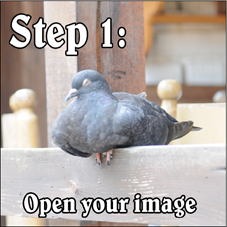
First things first. Open Photoshop and an Image you want to work on:Open you image

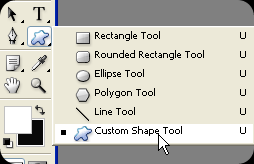
Now, select the Custom Shape Tool:Custom Shape tool

And from the Custom Shapes list, select the postage stamp:
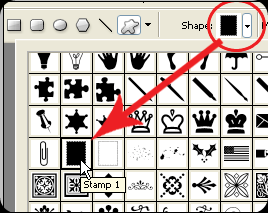
Stamp Shape

Fill PixelsOut of the 3 choices in the upper left corner of your screen, click on the 3rd one (fill pixels):

Create a new layer: SHIFT + CTRL + N (press OK)
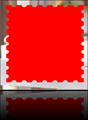
Stamp on PhotoDraw the postage shape on the new layer(no matter the color):


Right click the new Layer in the Layer Palette and then Blending Options: Blending Options

In this window, first thing to do is move the second slider(Fill Second Slideropacity) to zero:
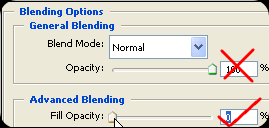


CheckboxesNow, check the Bevel and Emboss, and Drop Shadow boxes to the left:

Now it’s time to play with the settings. Depending on the size of your photo, you are going to need different settings, but I’ll tell you what settings to keep in mind.


Click on Drop Shadow, and you will get it’s settings. Play with the Size and Spread sliders ‘till you get what you want:
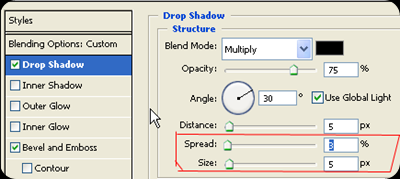
Spread and Size

You could also mess with the Bevel settings, but we will skip that for now, so just click OK.

Magic WandSelect the Magic Wand Tool, and click out side the Click outside of stampstamp shape:


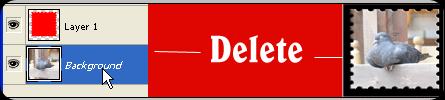
Select the photo from the Layer Palette, and press DELETE:image

  That would be it! You might want to change the background color, so with the outer part still selected, take the Paintbucket tool, with white color, and color it in.image
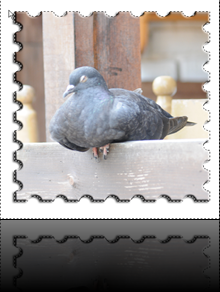
You don’t have to stop here. Invert the selection with SHIFT + CTRL + I(so the photo is selected), go to the filter gallery: Filter – > Filter Gallery, and choose an effect. I chose the Cutout filter, and added some text:

image

That’s it. There are some variations on the subject, and I would love to know what you would change to suite your needs, so feel free to write a comment on the subject :)

Friday, July 17, 2009

#35 Easy Do-It-Yourself Frames for Photoshop, Brush Shapes

This is a quickie. To get you started:

1) Open the image you want done

2) Make a copy of the Background Layer, and delete the original background layerLeaf Frame1

3) Make an New Layer beneath the picture(check image for consistency)


4) Hold down ALT and click on the line between the layers(as shown on the image below)

Clipping1

Your layer should move slightly to the right like so:

Clipping2 

You should now have a blank screen to work with. Now, take your Brush, set it’s Size and Hardness, and start painting on the empty layer!ClippingFinal

My tip Is to use different shapes for your brushes for some interesting effects. For starters, try the built in leaf brush and you might get something like this(image on right).

For an added frame effect you can always add Stroke borders on your layer, and a background layer with a color or gradient on the bottom.

This has many possibilities, and try combining with other tricks you know for some exciting results.

You could also look for more Brush packs for Photoshop. A good place to start is http://www.brusheezy.com/.

Monday, July 13, 2009

#34 Easy Do-It-Yourself Frames for Photoshop, Photo Borders

The simplest frames are often the best ones. Especially if you’re in a hurry, or don’t want to lose focus with the photograph you’re framing.

For this particular tutorial, a good choice of photograph would be one where the photo has one or two dominating colors. A good example is a wedding photo, where the dominating colors are the colors of the bride’s dress and bouquet, but anything will do. My choice:

beeThe obvious colors here are that purplish-blue  flower and the orange-yellow bee. The photo(by my standards) isn’t bad on it’s own, but suppose you want to add a bit of style to it.

Okay, now go to Image –> Canvas Size (Alt + Ctrl + C), and set it like so(click for a close up):

CanvasSize

So you just change the units to percent, set it to Relative and type in 6 (or any smaller number) for the size. For the Canvas extension color you click on the color box next to, and click on your image. Your mouse pointer turns into an eyedropper tool, and you choose the color for your border. This way you use the color from you picture. Click OK for the color picker, and OK again for the Canvas Size. I got:

bee2

The first part is done. Now, repeat what you did with the Canvas Size, but change the size to 30 this time, and pick another dominating color from the photo.

If you are not happy with the color picker, you can choose it manually.

So basically you make two different sized bands around the photo.

bee3Looking at it now, I probably should have used a darker purple. But maybe it’s just my BBB(black blog background).

Variations on this subject can include, but are not limited to:
-using more(or less) than 2 borders/colors
-different sizes, like making the first border thicker
-adding the Vignette effect beforehand for interesting results
-and so on…

Once you’ve read through this, you will realize that the longest part of this tutorial is looking for, and opening the photo, while the rest just zips by. Have fun with it!

Sunday, July 12, 2009

#33 Easy Black and White photos with some colored areas

Ok, keeping it short and simple. Open the image you want to work with in Photoshop. Press CTRL+SHIFT+U to make it black and white(or Image->Adjustments->Desaturate).

BWButterfly

Now, all that’s left to do is select the History Brush tool(shortcut Y) and be sure to not select the Art History Brush by mistake.

Now just go over the areas you want to get their color back and voila:

BWButterfly2

If you accidentaly color too much of it, you can use the color replacement tool, and set it to Black, to turn areas back to black and white.

An importatn thing to note is that the Desaturate command should be the first and only modification prior to the History Brush tool. If the image was rotated, then the History Brush won’t work. So, if you come across this problem, then firstly color it, and then rotate it, or rotate it, save it, and open it again.

That’s it. Learn to control the brush size and feathering for the best results, and even opacity finds it’s use here. Have fun and enjoy.

Sunday, February 22, 2009

#31 Fix Up Your Makeup In PhotoShop

If what the current internet trends are any indication, then you can’t have a photo of you on a social site without at least a little retouching.

Well, for starters, you need a photo to fix up. This is a guy writing this, so I won’t be working with what you would expect for “makeup”:

MakeUp1

I was amazed how this turned out, I wouldn’t of changed it, but it will be great for today’s trick.

The white isn’t completely white, and the black isn’t completely black. We have some smudges here and there, and some flash reflection to get rid of.

The first thing we should do is fixing the glow from the camera’s flash. We are going to use Color Curves to help us single out the flashed parts.

Make a copy of the one layer you have, and put it above the main layer. Now, select that new layer and open the color curves tab.

MakeUp2Once you make the curve to look like mine(see above), spotting the patches with too much light is easy. One of mine is above the eyebrow and there are 2 more on the lips, and one on the nose.

Use any selection tool to select the patches that need some flash reduction, and feather the edges of your selections.

Now hide this layer by clicking on the eye icon next to it on the layer window. Select the visible layer and open up the Curves again.

MakeUp3This way we can reduce the whiteness so we can continue to work with the image, but salvaging completely the color that was under there is a different thing. This is why you have to mind how and when you use your camera flash.

Next step: Fixing the white and black colors.

Since they are simple black and white colors, we can use the Dodge and Burn tools, but if it were any other color, we would need to use the brush. This is why I am going to show you how to use the brush tool, so you can fix any faded color.

Select the Brush tool and the color you need. I will start with a white, and continue with a black brush.

MakeUp4

Set the Brush opacity to about 30%, and start brushing up the photo. When working around your hair, lower the opacity, and when working with nooks and crannies reduce the brush size.

The same goes for any color.

Take your time, and fix it up as you see fit.

MakeUp5

MakeUp1


The before and after shots. That’s one way to fix up your make up. I could of done the lips too, with any color available.

So the next your makeup is faded on your photos, just spruce it up in PhotoShop.

Friday, February 13, 2009

#30 Make Hearts Quickly in Photoshop

With Valentines day coming up tomorrow, I thought that this was a more then appropriate post to make. Maybe it will save someone the hassle of using worn-out templates, and done-to-death pictures.

Ok, start open a new page in Photoshop, with the size you want and the background color you want, and let’s get started.

Select the pen tool and just punch in these points, with the tool shown selected(close the path by clicking on the first one you made):

Heart

With the Pen Tool selected, hold down the CTRL key, and click on one of the edges to get the points to show(left).Heart2 Now hold downHeart3 ALT and click on the point and drag away from it, and see what shapes you get(right)

Repeat this for all the points except the two ones in the middle. Curve it any way you want of course.

Enter the layer style menu, and check the Bevel and Emboss tab, and increase the size to get a nice rounded shape:

Heart4

No Valentines Day heart would be complete without the letters carved in right?

Make the text that you want, and give it a color that you want and set it’s layer style as follows:


Heart 5Again, the possibilities are only limited by your imagination. A couple of quick tricks: try using a gradient color, different Bevels, add this to a photo of the two of you, and try unconventional heart shapes. Experiment!

She/he will appreciate anything you spend some time on for her/him, so don’t keep it too simple.

Friday, January 30, 2009

#25 Mix Up You Textures And Colors, Create A Cool Logo

With all the 1-click logo making software on the web, you might ask why should you even go through the hassle of making one yourself? The answer is simple. Originality(and brag rights too). If you are using overused templates in logo creation software, chances are your logos style has been done to death.

To get things going, write up the text for your logo in PhotoShop. Rasterize it(right click on the layer, Rasterize Type) and make a couple duplicates of that layer, one on top of the other.

Now, color all of the layers differently. To help you do this, make the layers you are not currently coloring invisible so you can see the layers under them. So lets say you have something like this:

Logo Layers 1

I have 3 differently colored layers. You may have as many as you want of course. The next step is setting up layer masks for all of them. Just select each layer, and click on the little “circle in a square” on the bottom of the layer window.

With this you get a white thumbnail next to your layer thumbnail. It works like this: The areas that are white on this new image are the areas that are visible on the original, and the areas that are black on this image will be invisible. Gray colors grant a level of transparency.Logo Layers 2

Now that you know how this works, use this to mix up the visibility  of the different layers, and don’t forget to use a black(or white) brush with the “Layer Mask”(the white thumbnail) selected.

Logo Preview

This is a pretty simple tutorial, which represents the point of this blog, but as with other tricks, you can use this new knowledge for practice and combination with other skills.

TBCLogo

You can use the same technique on images(in this case, 3D images), and even combine that result with text. Add some formatting to the text, an interesting layout, and you got yourself a logo! Hmm, I think I will be using this one until I make a better one. My first blog logo! Celebration time!

Friday, January 23, 2009

#22 Ghostly Apparitions

You may, or may not be a believer in ghost stories, but either way you should be aware of how easy it is to fake a ghost in a photograph. 

Get yourself a few photos to mix up. I just happen to have a Christmas angel figure, and an eye photo from one of the previous posts.

ghost

Now that you have something to work with, you can start by fading out the “ghosts”, using the opacity slider for the layers. (click to enlarge to see where the opacity slider is)

ghost1


Select the Eraser tool and reduce the tools opacity and set the hardness to zero, so you don’t have hard edges. You can also use one of the techniques in my previous post for soft vignette edges.

Work with what you have, or get better starting photos of course.

Ghost2

This isn’t perfect, but, if you manage to do this, then you will have no trouble making more convincing ghosts. Mess with the curves a little so you get bloody or pure white ghosts. So now, the next time you see a “ghost sighting photo”, think about how easy it was to make. Which doesn’t necessarily mean that it isn’t real, but I will believe it when I see it with my own, non-edited, vision.

Monday, January 12, 2009

#16 Easy Do-It-Yourself Frames for Photoshop, Special Effects

Not so long ago I showed you how to make easy vignette frames for your pictures. Well, now are kicking it up a notch.

Open the photo you want “manipulated” in PhotoShop(I am using CS4, but you can do it in an older version with no difference in procedure). Use any selection tool to highlight the part of the picture that you don’t want to change and add a feather value of 20(or whatever you want actually) like so:

frameef

(click to enlarge). Now, right click the selection and then Select Inverse. Now you can start adding your effects.

Now that you have the outer side selected, you can use any brush tool, or adjustment, on just that area. I suggest clicking on Filters and experimenting with the various choices there.

HeadBang

This is what you can get if you use the Glowing Edges Filter.

Of course, you can use any random shaped selection for your frames, you don’t have to use the standard selection tools. And you can use this trick for more then just frames. PhotoShop does all the work for you:

Find Edges

Color Curves

Invert

It’s really simple to do, and all you need is a photo to work with and some ideas. It only takes about half a minute once you get the hang of it. You might discover a side of you that you never knew!

Thursday, January 8, 2009

#14 Through Glass, A Different Perspective

Grab your camera, and look for any and all transparent objects. Preferably glass objects without smooth shapes. If the object is smaller, such as a glass(for my examples), set it between the camera and a subject(like you, for instance).

Glass1

Rotate the glass, zoom in and out, improvise until you are satisfied with the result. You are not prohibited from having a little fun in PhotoShop of course. I first use the Dust & Scratches tool to remove the obvious on the picture, and later used the Glass tool just for fun. The results:
Glass2

Glass3

Zoom in for greater detail.


Experiment with Color Curves for various effects. Just go crazy!


GlassWithCurves

Curve it the right way and you are on your way to create a B horror movie.


Enough fun for now. I just happen to have this square drinking glass, so it’s good for some fun, but any glass will do. Rotate, snap, add effects, edit the Curves. Enjoy the effects!